Multifactor Authentication (MFA)
Device Requirements
Eaton's Standard MFA factors require one at least one of the below
- Smart Phone and Tablet (either Eaton Managed or Personal)
- Android
- iOS
- Eaton Managed/Owned PC
- Windows
- Mac
Please Note
- Some mobile based Factors are not managed by Eaton.
- Google Authenticator and Microsoft Authenticator Apps
- Installed directly from a Public App Store (e.g. Google Play or Apple App Store)
- Google Authenticator and Microsoft Authenticator Apps
- Personal devices:
- Eaton will not be able manage your device with these applications
- Eaton cannot see any data on your device
- The device is only used to receive a push notification or store an off-line token (Time-Based One Time Password) code.
- Use of a personal device is purely voluntary
Eaton's Standard Factors
- Microsoft Authenticator (Recommended)
- Provides a Push Notification with a random number challenge
- Google Authenticator
- Can be used instead of Microsoft Authenticator
- KeePassXC
- A desktop password manager that provides Time-Based One Time Password (TOTP) which changes every 30-60 seconds
- Can be used instead of Microsoft Authenticator
- Security Key or Biometric
- YubiKey
- Hardware based authenticator
- YubiKey
- Digital Certificate
- Available only on Eaton-managed devices (computers on the shop floor, Eaton mobile devices, etc.)
- Requires a second MFA method to access Eaton applications (tax information, benefits, and other Joe or HR applications) on a personal device (PC or smartphone)
Setup MFA
There are two ways to setup MFA. When prompted during login if it is your first time logging into an Entra protected application or via account settings.
Important Considerations
- Having multiple factors active ensures that you can self manage your EID Account including MFA Factors.
- Any combo of factors is better than just one.
- Microsoft Authenticator + Digital Certificate
- Google Authenticator + YubiKey
- Any combo of factors is better than just one.
- You can set up Multiple factors on different devices
- Digital Certificate on Desktop (Windows, Mac)
- Microsoft or Google Authenticator on Mobile (iOS, Android, iPad)
Device Replacement Recommendations
- Set up multiple factors so you have a backup in the event of an emergency.
- If you know you're replacing your existing device DO NOT wipe your old device before enrolling your new device as a factor
During Login
If you do not have an MFA factor enrolled and you attempt to access an Entra ID Protected application, you will be prompted to enroll in a required factor.
- During initial logon, a choice of factors will be presented.
- Choose a factor and click "setup" for guided instructions on how to setup the factor selected.
Note
See Detailed Steps on Factor Setup for information on the different factors.
My Account Settings
If you'd like to add addtional or modify your current MFA factors, you can do so via Entra ID My Account page.
- Logon to My Account page
-
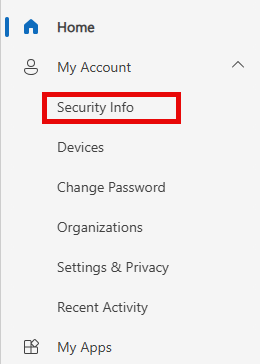
Click on "Security Info".
-
Select an existing sign-in method to change/remove or click the "+ Add sign-in method" to setup a new one.
Tip
Only your password can be changed; all other sign-in methods must be deleted and re-enrolled.
Detailed Steps on Factor Setup
For a detailed walk through of each factor set up please refer to the below. Please note, some screenshots may contain older versions of application screens.
Microsoft Authenticator
-
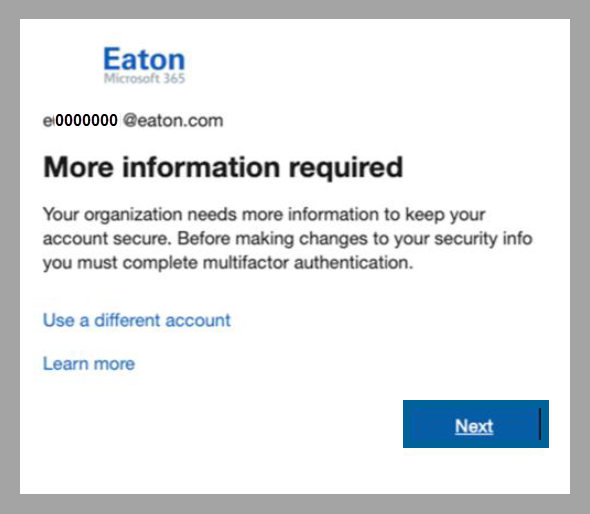
If you have not yet setup MFA for your account, you will see this window when you first login to access your applications. Click Next to proceed with setting up Microsoft Authenticator.
-
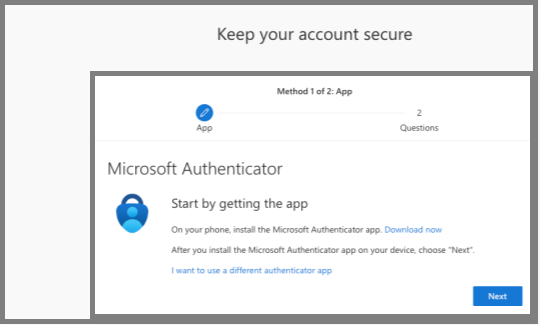
Use your mobile device to download the Microsoft Authenticator App, then return to your PC and click Next.
-
Open the Microsoft Authenticator application, and click the blue QR Code icon to scan the QR Code image on your computer screen. Follow the instructions provided on screen and in the application, then select Next.
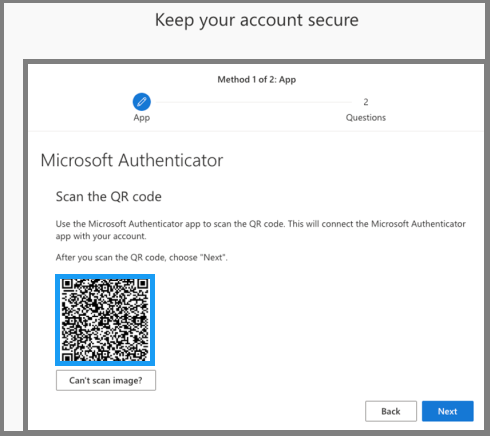
DO NOT scan the code from this help document. Each QR Code is unique to your account alone.
-
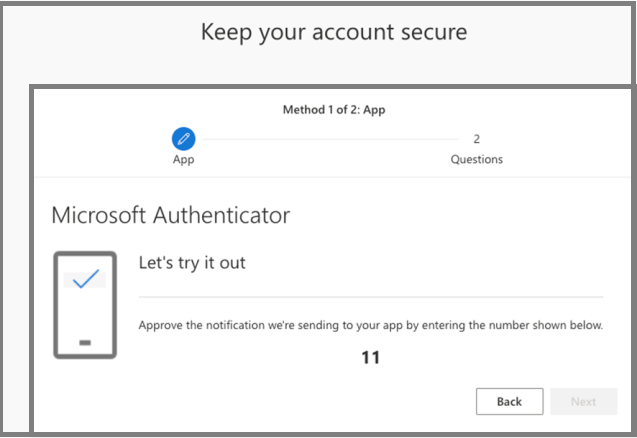
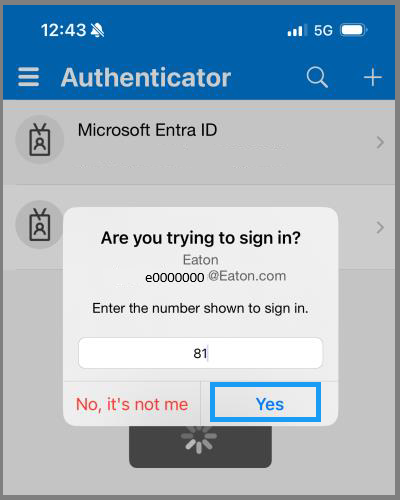
On the Let's try it out pop-up window, a number appears. Use your mobile device to access the Microsoft Authenticator application and enter the numbers as they appear on the computer screen, then select Yes.
-
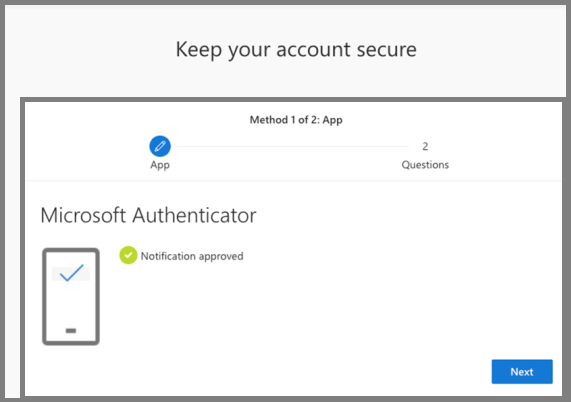
After successfully entering the number, your computer window will refresh and confirm that your Microsoft Authenticator application is now synced with your account. Select Next.
-
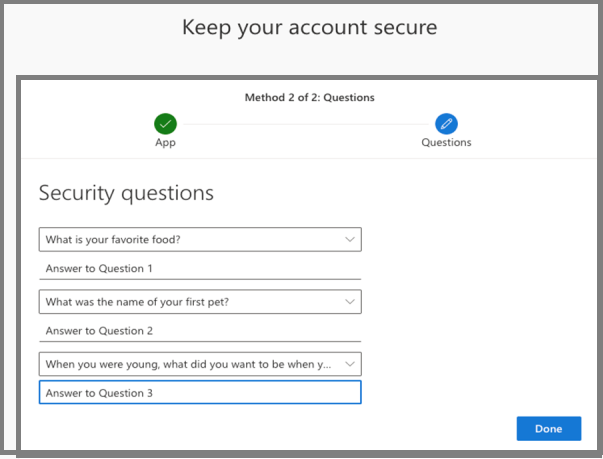
You are presented with a list of security questions. These questions enable you to reset your own password if you lock yourself out. From the drop-down list, select your preferred security questions and type an answer to each question. You cannot repeat answers to questions. When you are finished, select Done.
-
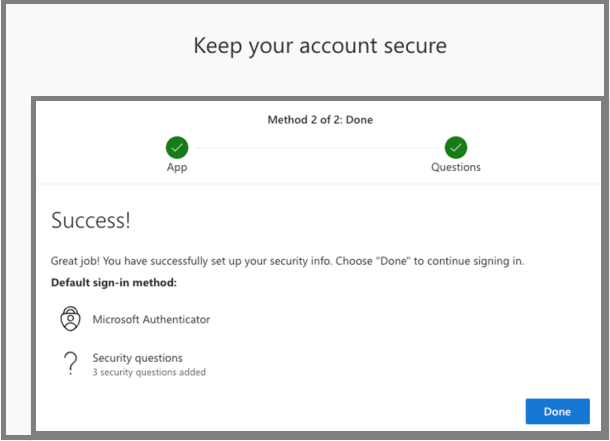
When you have setup your Microsoft Authenticator application and security questions, select Done. This windows confirms that you have successfully completed both processes.
Google Authenticator
-
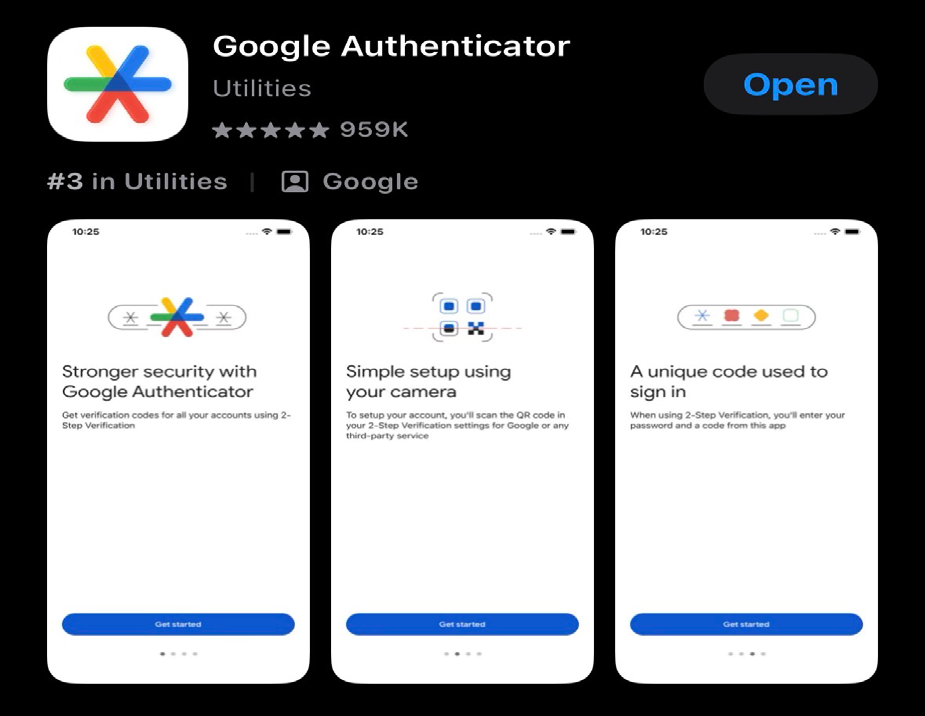
Use your mobile device to download the Google Authenticator from the App Store.
-
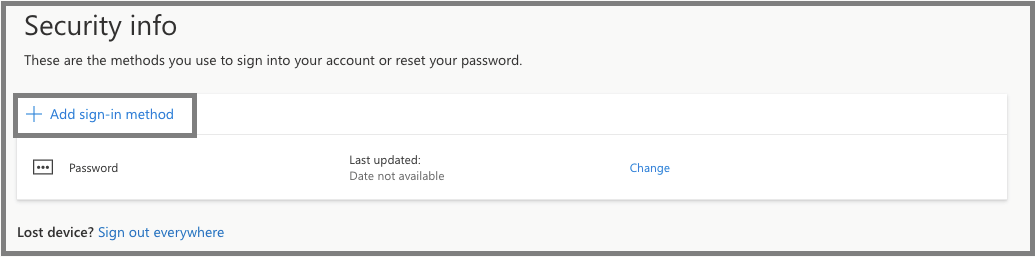
On your PC, navigate to Security Info and select + Add sign-in method.
-
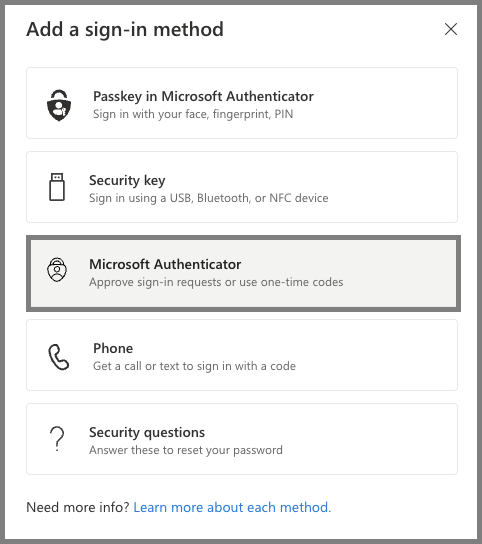
Select Microsoft Authenticator.
-
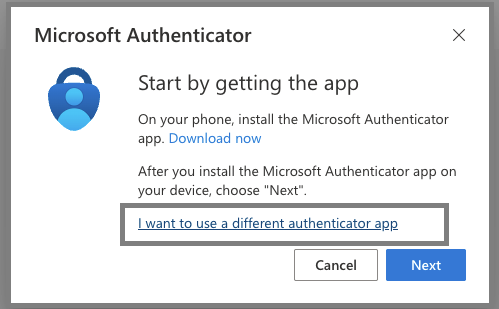
Select I want to use a different authenticator app.
-
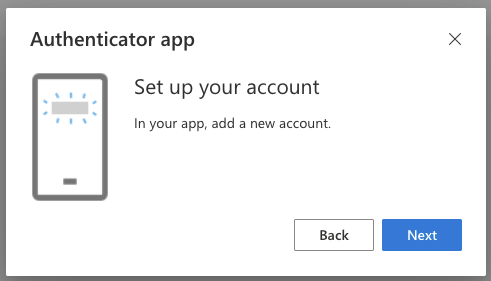
Select Next.
-
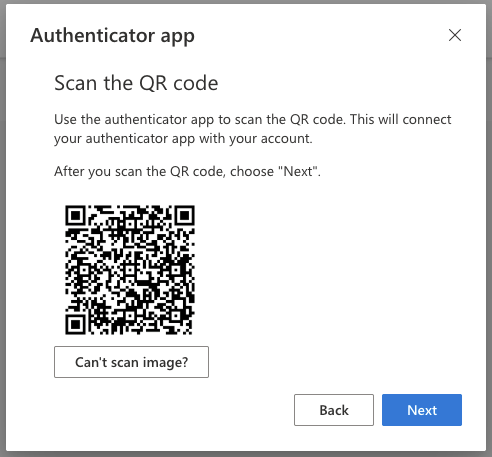
Keep this QR code available to scan with your mobile device.
-
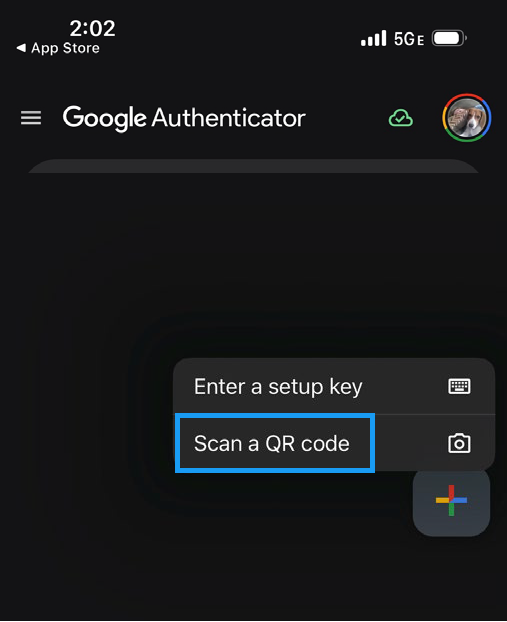
Open the Google Authenticator on your mobile device. Select + at the bottom right corner of the screen. Then select Scan a QR code.
-
Scan the QR code that is available on your PC, using the authenticator app setup steps with your mobile device. Once scanned, a new Microsoft account will appear in Google Authenticator. Select Next (in browser) to view set up steps.
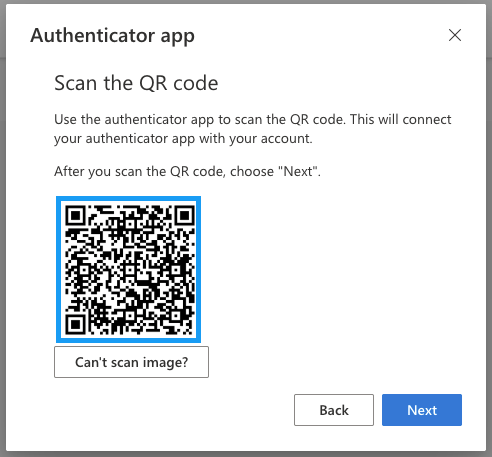
DO NOT scan the code from this help document. Each QR Code is unique to your account alone.
-
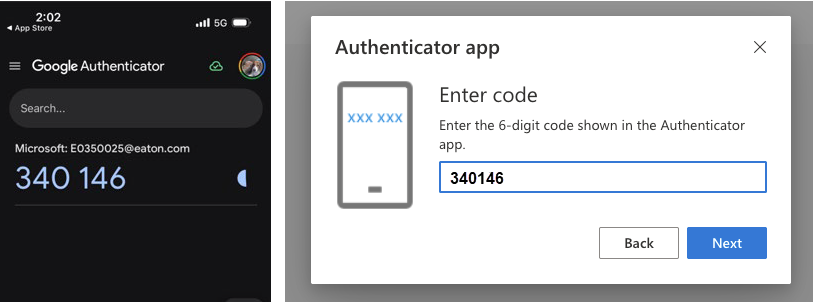
Open the Google Authenticator app on your mobile device to get your one-time code. On your computer, enter this code into the authenticator prompt and click Next.
-
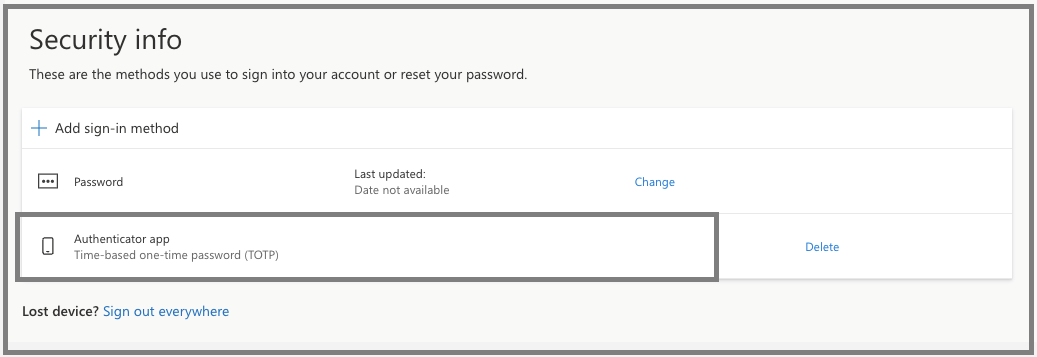
Google Authenticator is now available as a form of MFA for Microsoft Entra ID connected applications.
Special Exception Factors
SMS
This Factor will send a code to an SMS enabled mobile phone. The code can then be entered into the myaccount.microsoft.com login prompt.
An exception can be requested to use SMS as a Factor with your Entra ID account. SMS is considered a weak factor and can only be used when the standard factors will not work. This request should only be made if the Standard Factors cannot be used. This exception requires approval from your manager due to the potential risk.
IMPORTANT:
The exception for this factor will be revoked when access to high risk applications is granted. At the time of assignment the SMS Factor will no longer work for a user for any application.